
Description
Mark your center point, choose your material, choose the geometric shape, choose the size in blocks, and submit. A 15 sec delay allows you time to move away and then Shape Box delivers exactly what you asked for! Sphere, Dome, Cube, Horizontal and Vertical: Cylinders and Squares with length choice, and Pyramid.
Mod Wiki
Shape Box
Quickstart
- Obtain a Shape Box from the Creative inventory under Construction, or craft one at a crafting table.
- Stand where you want the structure’s horizontal center and base to be. Face the direction you want a horizontal shape to extend.
- Use the Shape Box. In the menu, choose:
- Build Material
- Shape
- Size
- Length for horizontal shapes
- Select Submit. A 15-second countdown appears on your action bar.
- Keep playing in the same dimension while the countdown runs. When it reaches 0, the hollow structure begins building at your selected location.
You can also obtain it with:
/give @s com_shape_box_n4gspm4n:my_sword
Overview
Shape Box creates hollow geometric structures directly in the world. Your position when you submit the menu becomes the structure’s reference point. The structure starts at your level, is centered horizontally around you, and grows upward.
The build material replaces blocks at the target positions, so use the tool in an area where overwriting existing blocks is acceptable.
What It Adds
The Shape Box item provides:
- Eight hollow or shell-style shapes
- A size range from 1 to 55
- Length controls for horizontal cylinders and square tubes
- A selection of decorative, building, glass, and resource blocks
- A delayed, visible 15-second construction countdown
- Automatic construction in the background after the countdown
The item is non-stackable and can be used repeatedly.
How To Use
Choosing the build location
Use the Shape Box while standing at the intended center of the structure. The location and facing direction are recorded when you press Submit, not when the build finishes.
For the best results:
- Stand on or just above the area where the structure should begin.
- Face along the desired extension direction for horizontal cylinders and horizontal square tubes.
- Do not leave the dimension during the countdown.
- Allow the build to finish before starting another large construction.
The structure is placed in batches, so large shapes may take some time to complete after the countdown.
Shape menu
| Shape | Description |
|---|---|
| Sphere | A hollow spherical shell. |
| Dome | A curved shell with a solid circular base. |
| Cube | A hollow cube with six outer walls. |
| Pyramid | A stepped, hollow-sided pyramid with a solid bottom layer. |
| Vertical Cylinder | A hollow cylinder that rises upward. Its height is twice the size plus one block. |
| Horizontal Cylinder | A hollow cylinder extending horizontally in the direction you face. |
| Vertical Square Tube | A hollow square tube rising upward. |
| Horizontal Square Tube | A hollow square tube extending horizontally in the direction you face. |
Size and length
- Size controls the radius or half-width of the shape.
- Size can be set from 1 to 55.
- Length can be set from 1 to 55.
- Length affects only Horizontal Cylinder and Horizontal Square Tube.
- For all other shapes, the Length selection has no effect.
Crafting And Obtaining
The Shape Box is available in the Creative inventory’s Construction category.
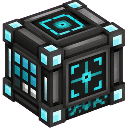
Craft it at a crafting table with iron, redstone, cyan dye, and a diamond:


Abilities And Mechanics
- The generated structures are hollow shells rather than fully filled solids.
- A structure is centered on your recorded horizontal position.
- Structures begin at the recorded ground-level reference and extend upward.
- Horizontal shapes use the direction you were facing when you submitted the menu.
- The build material is selected from the Shape Box menu rather than taken from your inventory.
- The action bar displays the countdown from 15 to 0.
- Construction continues automatically after the countdown, placing the selected blocks in batches.
- Using the item opens the Shape Box menu; it does not immediately build until you submit a selection and the countdown finishes.
Available Build Materials
The menu offers the following materials:
- Basalt
- Birch Leaves
- Black Concrete
- Black Stained Glass
- Blue Concrete
- Blue Stained Glass
- Bricks
- Cherry Leaves
- Cobblestone
- Crying Obsidian
- Deepslate Bricks
- Deepslate Tiles
- Diamond Block
- Dark Oak Planks
- Emerald Block
- Glass
- Gold Block
- Green Concrete
- Green Stained Glass
- Iron Block
- Oak Leaves
- Oak Planks
- Obsidian
- Pale Oak Leaves
- Pale Oak Planks
- Polished Andesite
- Polished Blackstone Bricks
- Polished Diorite
- Purple Concrete
- Purple Stained Glass
- Quartz Block
- Raw Gold Block
- Raw Iron Block
- Red Concrete
- Red Sandstone
- Red Stained Glass
- Sandstone
- Smooth Quartz
- Smooth Sandstone
- Smooth Stone
- Spruce Planks
- Stone
- Stone Bricks
- Tinted Glass
- Tuff Bricks
- Yellow Concrete
- Yellow Stained Glass
Progression And Strategy
- Start with a small cube, dome, or cylinder to learn how the recorded position affects placement.
- Use glass or stained glass for observatories, domes, and display rooms.
- Use stone, deepslate, or bricks for durable bases and fortifications.
- Use leaves for organic domes and garden structures.
- Use horizontal cylinders and square tubes for tunnels, bridges, and corridors.
- Choose the direction carefully before submitting a horizontal build.
- Preview the area mentally before starting large sizes, since the selected blocks can overwrite existing terrain.
- Large sizes create many blocks; leave the area clear and wait for the construction to finish before inspecting the completed shell.
How to install
Download the mod and follow the step-by-step installation guide.
Players also liked
Drop Box


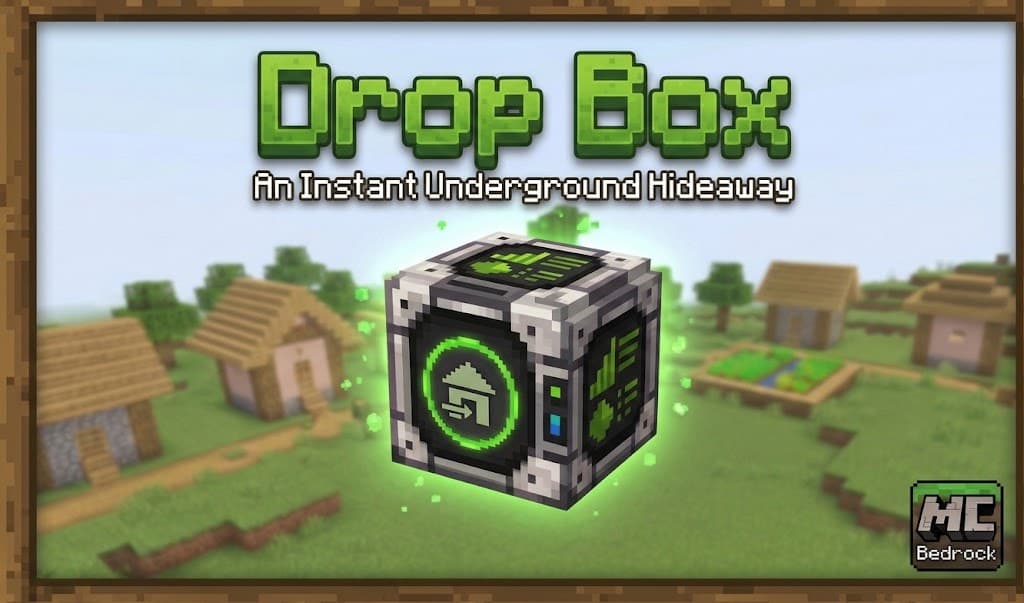
Quick escape to a safe room where you can do some crafting, sleep, and restore your health. Just use the handheld remote and instantly be delivered to your safe room. Using the remote once again returns you to the exact spot you were before.
Work Box
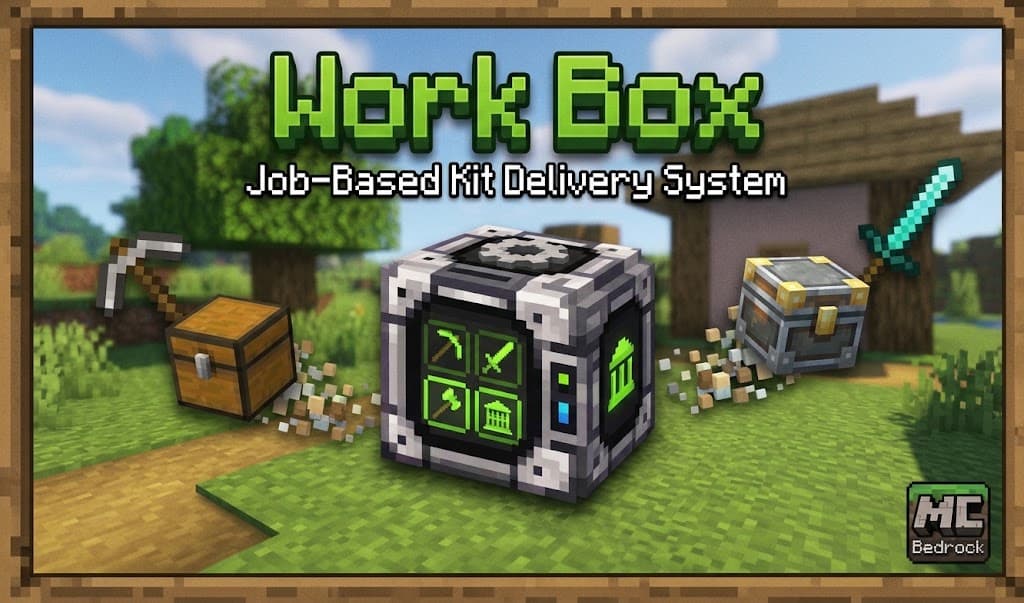
Work Box is a job-based kit delivery mod for Minecraft Bedrock that allows players to instantly request specialized equipment sets delivered right in front of them ranging from plain, to good, to best.
Stat Box
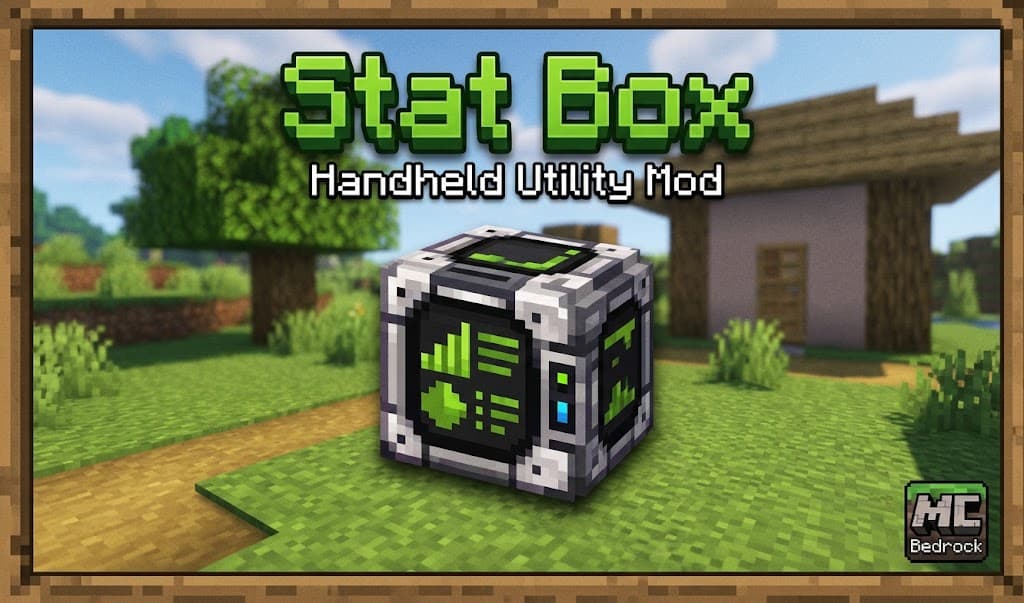
Stat Box adds a craftable, handheld tech reader to Minecraft Bedrock that tracks and displays your detailed world and player stats in a clean, categorized interface. There are many stats you can view and many of them do not show on screen until you actually have information to ad…
Phase Box
Keep your home safe while you aren't in it. Just use the Phase Box outside one corner bottom block, then the block on the opposite corner (at the same level), and finally above your house/base, and submit. From then on until you remove the mod or pick a new place, the selected ar…
The Musical Number
Explore a colossal baby grand piano brought to life as a monumental Minecraft landmark that you can build in.
This mod is licensed under the CreativeMode Mods License.