

Description
Adds a working Minecraft interpretation of the turtle from Python Turtle! You can program it with these functions: Place block (places from first available slot in inventory), Break block (breaks and drops the block infront of it), Forward (moves the turtle forward), Hop (moves the turtle diagonally forward and up), Fall (moves the turtle directly down), Turn right (90 degrees), Turn left (90 degrees), and Wait (predefined integer). In my example, I made a cobblestone generator with it. There's probably more you can do with it though! Inspired by Python's turtle pen and Minecraft Education Edition's reprogrammable Agent (previously noted incorrectly as a reprogrammable Golem)
Mod Wiki
Java Turtle
Quickstart
- Obtain a java.Turtle with
/give @s java-turtle-bldrwiid:java_turtle, or craft one after making an LCD screen. - Craft the LCD screen:



- Use the LCD screen to craft the turtle:

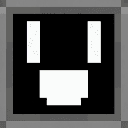
- Place the turtle on the ground and right-click it to open the java.Turtle Programmer.
- Put block items into the turtle’s ten inventory slots. These blocks are used by the Place instruction.
- Click the numbered instruction slots to cycle through commands. Try setting the first three slots to Forward, Turn right, and Forward.
- Click START to run the program. Click STOP to halt it.
A turtle begins with all ten instructions set to Empty. It runs from slot 1 onward and stops when it reaches an Empty slot.
Overview
Java Turtle adds a programmable turtle block that can move around the world and interact with blocks. Programs contain up to ten numbered instructions, which the turtle performs in order.
The turtle keeps its program and inventory while moving. It can also turn to face a new direction, allowing the same program to work in different orientations.
What It Adds
| Content | Use |
|---|---|
| java.Turtle | A programmable turtle block with a ten-step program and inventory |
| LCD screen | Crafting component for the turtle |
| java.Turtle Programmer | Interface used to configure, start, and stop turtle programs |
An advancement titled print("Hello world!") is awarded when you collect a java.Turtle.
How To Use
Opening the programmer
Place the turtle, then right-click it. You must remain within about eight blocks of the turtle to continue using its interface.
The programmer contains:
- Ten numbered instruction slots
- Ten turtle inventory slots
- Your regular player inventory
- START and STOP controls
- A RUNNING indicator while the program is active
Selecting instructions
Click a numbered instruction slot to cycle through its available commands. The order is:
Empty → Place → Break → Forward → Hop → Fall → Turn left → Turn right → Wait → Empty
Hover over an instruction slot to see its full name. The short labels shown in the row are:
| Label | Instruction |
|---|---|
- | Empty |
P | Place |
B | Break |
F | Forward |
H | Hop |
D | Fall |
L | Turn left |
R | Turn right |
W | Wait |
Running and stopping a program
- START resets the program to slot 1 and begins running it.
- STOP immediately stops the turtle.
- The turtle pauses briefly between instructions.
- Programs continue through all configured instructions and loop back to slot 1.
- The turtle stops when it reaches an Empty slot.
If all ten slots contain instructions, the program loops until you press STOP.
Abilities And Mechanics
All directional actions use the turtle’s current facing direction.
Place
Place attempts to put a block in the space directly in front of the turtle.
- The target space must be replaceable.
- The turtle uses the first block item it finds in its inventory.
- One block is consumed for a successful placement.
- If no block item is available, or the target cannot be replaced, the program continues without placing anything.
- Placed blocks use their default block state.
Break
Break destroys the block directly in front of the turtle.
- The block’s normal drops appear in the world.
- The turtle does not collect the drops into its inventory.
- Air and other java.Turtle blocks are ignored.
Forward
Moves the turtle one block forward on the same level if the destination is replaceable.
Hop
Moves the turtle one block forward and one block upward if the destination is replaceable.
Fall
Moves the turtle one block downward if the space below is replaceable.
Turn left and Turn right
Rotates the turtle 90 degrees without moving it.
- Turn left rotates counterclockwise.
- Turn right rotates clockwise.
Wait
Does nothing for one program step. Use it to insert a pause between actions or to make a repeating pattern easier to time.
Moving with a program
When a movement instruction succeeds, the turtle relocates to the new position and carries along:
- Its programmed instructions
- Its current inventory
- Its running state
The turtle can move into empty or otherwise replaceable spaces, so check the route before starting a long program.
Crafting And Obtaining
LCD screen
Craft an LCD screen with glass panes, redstone, and an iron ingot:
The LCD screen is used to craft a java.Turtle.
java.Turtle
Craft the turtle with iron ingots, redstone, a chest, and an LCD screen:
You can also use:
/give @s java-turtle-bldrwiid:java_turtle
A journeyman toolsmith has a chance to offer a java.Turtle for 12 emeralds. The trade is limited to one use when it appears.
Breaking a turtle
Use a suitable tool to break the placed turtle. The turtle item drops, and items stored in its inventory spill out.
Progression And Strategy
- Start with a short program such as Place → Forward → Place.
- Use Turn right or Turn left to build square paths and repeating patterns.
- Load several types of blocks into the inventory when experimenting; Place searches the inventory for a block item.
- Leave an Empty slot after a sequence when you want the turtle to stop instead of loop.
- Use Wait between movement and block actions when you want a visible pause.
- Keep the turtle’s path clear, especially for Hop and Fall.
- Remember that Break drops materials on the ground, so collect them after the turtle finishes.
How to install
This Java mod can be used on Windows and Mac PCs with the CreativeMode Launcher or any Minecraft launcher of your choice.

1. Download and install the new CreativeMode Launcher

2. Click to play on the top of the screen.
3. That's it — launches instantly. No complicated setup required.
Want to use on a different launcher? Download mod and manually install.
Players also liked

Item Duplicator


This mod adds an Item Grabber tool that siphons items from chests, storage blocks, players, and mobs by right-clicking (it consumes durability and has a short cooldown), packing any grabbed loot into a portable, fireproof 54-slot Storage Cube instead of dropping it on the ground.…
Boomeraxe


The Boomeraxe adds tiered throwable axes (wood, stone, iron, gold, diamond, and netherite) that also function as effective handheld pickaxes and multipurpose tools: hold right-click to charge and release to throw — a full-charge throw sends it far and it returns to you like a loy…

Potion Launcher


The Potion Launcher is a magical item that lets you throw unlimited splash potions without needing any materials. Right-click to open a selection menu where you can choose from 10 different potion effects including Healing, Harming, Poison, Slowness, Weakness, Fire Resistance, Re…

Stygian Harvest Scythe


Harvest the Nether’s secrets with a scythe that replants crops and uncovers forbidden relics.
Thunderwarp Hover Bike


Take to the skies on a Thunderwarp Hover Bike and blast across the world with electric teleporting power!
This mod is licensed under the CreativeMode Mods License.