

Description
Select, copy, cut, and paste builds. Builds are saved to a library where you can adjust build rotation and paste using only the blocks in your inventory. If the same blocks are not available, only part of the build is pasted.
Mod Wiki
Hammer Of Editing
Quickstart
- Craft a hammer, such as the Wood Hammer of Editing: .
- Hold it in your main hand and right-click solid blocks to select them. Selected blocks get colored outlines.
- Right-click the air to open the Formation Library. With blocks selected, choose Save to store them, Copy to store them and arm repeat-paste, or Cut to store them and remove them from the world.
- To place a saved formation, select it in the library and choose Paste or Repeat. Then right-click the face of a solid block; the formation is placed in the adjacent air.
- While holding a hammer, left-click to undo and middle-click (Pick Block) to redo. Left-clicking with the hammer is an undo action, not mining.
Overview
The hammer turns block selection into a reusable build library. Select individual blocks or a cuboid of blocks, save their arrangement, and paste it elsewhere. The library displays formation previews and indicates how many blocks you are missing for a full paste.
What It Adds
Seven Hammer of Editing variants are available: Wood, Stone, Iron, Gold, Copper, Diamond, and Netherite. They use the same editing controls; choose a material based on the resources you have. The hammers are also available in the Creative inventory’s Tools & Utilities tab.
How To Use
- Select blocks: Right-click blocks with the hammer. In regular selection mode, clicking an already selected block does not remove it; use Clear in the library to clear the selection.
- Save, copy, or cut: Open the library by right-clicking air. Save stores the selection without changing the world. Copy stores it and readies repeat-paste. Cut stores it, removes the selected blocks, and gives you their block items where available.
- Paste: Choose a formation, then Paste for one placement or Repeat to keep the formation ready for more placements. Right-click a solid block face to place beside it. Only air spaces are filled; occupied positions are skipped. In Survival, you need the matching block items in your inventory, and a paste can be partial if you lack enough. Creative mode does not consume blocks. Right-clicking air opens the library instead.
- Manage formations: Select a library entry to rename, rotate, paste, repeat-paste, or delete it. The library holds up to 200 formations.
- Stop placement: Choose Stop Paste Mode in the library, or right-click air to open the library and manage the active mode.
Crafting And Obtaining
Each recipe makes one hammer. All use an Ender Pearl and two Sticks; the top row uses two pieces of the listed material. Wood uses any Planks, while Stone uses Cobblestone.
| Hammer | Recipe |
|---|---|
| Wood | |
| Stone | |
| Iron | |
| Gold | |
| Copper | |
| Diamond | |
| Netherite |
Abilities And Mechanics
Mass selection
Open the library and turn Mass on. Right-click one block to set the first corner, then right-click another to select the cuboid between them. Only selectable blocks inside the area are included; air and fluids are not. In this mode, right-clicking a selected block removes it from the selection.
With a mass selection active, the library also offers Plains, Desert, Savanna, Snowy, and Taiga themes. These replace selected blocks with a matching mix of logs, planks, and glass. Undo is available if you want to reverse the result.
Undo and redo
Undo and redo cover editing actions such as selection changes and world edits. With a hammer held, left-click to undo and use your Pick Block control (middle-click by default) to redo. The hammer uses durability for editing actions in Survival; actions do not cost durability in Creative.
Template editing
For an inventory-free block-design workflow, choose Template Paste for a library formation. The temporary template blocks can be edited by right-clicking them with the hammer and choosing a replacement block in the search screen. Choose Save Template to store the edited arrangement as a formation.
Template blocks are temporary: saving the template or turning Template mode off clears them from the world. Save your work before ending the mode.
How to install
This Java mod can be used on Windows and Mac PCs with the CreativeMode Launcher or any Minecraft launcher of your choice.

1. Download and install the new CreativeMode Launcher

2. Click to play on the top of the screen.
3. That's it — launches instantly. No complicated setup required.
Want to use on a different launcher? Download mod and manually install.
Players also liked
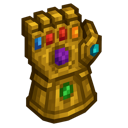
Infinity Master Gauntlet


a insane gauntlet be carefull though not all abiltys are helpfull
Orbital Railgun Cataclysm

``` Orbital Railgun Cataclysm ├── 🎯 Activation │ ├── ⏱️ 2s charge-up (green energy surge) │ └── 🚀 Launches full 20s orbital sequence │ ├── 🛰️ Phase 1: Target Scan │ ├── 🔄 Rotating white rings (r=30) │ ├── 🌐 Adaptive green laser grid │ └── 📡 Deep hum + radar tones…
This mod is licensed under the CreativeMode Mods License.