

Description
Play Among Us on The Skeld: complete tasks, repair sabotages, call meetings, and uncover the Imposters.
Mod Wiki
Among Us The Skeld
Quickstart
- Set up a play area. An admin can get the Among Us Admin Tool with
/give @s com_among_us_the_skeld_rqduyv4b:admin_tool. To use it, grant access with/tag @s add among_us_admin, then use the tool and open Map Setup. - Configure the match. Set game and lobby locations, meeting positions, the emergency button, task stations, and the sabotage repair panels and doors you want to use. Use Check Map Setup to see what is still needed before starting. Vents and security cameras are optional.
- Start a match. In the Admin Tool, choose Game Management → Start Game. Players receive their roles and colours privately. Crewmates get a Task List; Imposters get their match abilities.
- Try the core loop. Crewmates use the Task List to find assigned jobs and interact with their stations. Report a dead crewmate by interacting with the body when prompted, or use the emergency button to call a meeting. Discuss and vote—or skip.
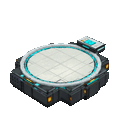
- Try the MedBay Scanner. Craft a MedBay Scanner placer, then place it in your play area:


Overview
Among Us The Skeld turns a configured play area into a social-deduction match. Crewmates work through assigned tasks and respond to sabotage while trying to identify the Imposters. Imposters can eliminate Crewmates and sabotage ship systems. Meetings give players a chance to discuss what happened and vote.
The Admin Tool manages the match and its map systems. Players use task panels, meeting stations, vents, cameras, and role abilities during play.
What It Adds
| Content | What it does |
|---|---|
| Task List | Shows a Crewmate’s assigned tasks, locations, and progress. |
| Task Panel | Provides the configured task interaction at a station. |
| Emergency Button | Lets an eligible player call an emergency meeting. |
| Dead Crewmate Body | Can be reported to start a meeting. |
| Skeld Vent | Lets an eligible player enter, travel to a connected vent, or exit. |
| Sabotage Repair Panel | Provides the configured interaction for repairing ship systems. |
| Security Monitor | Opens the configured security-camera system. |
| Among Us Colour Selector | Lets players choose an available colour. |
| MedBay Scanner | A placeable scanner used for the Submit Scan task. |
| Admin Tool | Configures match settings, map systems, and match controls. |
How To Use
Crewmates
Use the Task List item to review your assignments. It shows task progress and, where relevant, the room to visit. Go to the configured station for an unfinished task and interact with its panel. Tasks include wiring, card swiping, clearing asteroids, transferring data, diverting power, engine work, and other short and multi-stage jobs.
If a crewmate body is nearby, interact with it when REPORT appears. To call an emergency meeting instead, interact with the configured Emergency Button. Emergency uses and cooldowns may apply.
During a meeting, discuss the report, then choose a living player to vote for or skip. Confirm your vote to lock it in. Dead players cannot call emergency meetings; Crewmate ghosts can continue retained tasks.
Imposters
Use the Kill item when a target is within the match’s configured kill distance and the ability is available. A kill leaves a reportable body.
Use the Sabotage item to open the sabotage choices. Only one sabotage can be active at a time, and a shared cooldown may apply. Options include room-door closures and O2, Reactor, Lights, or Communications sabotage. Available choices depend on what the admin configured.
Vents can be used to enter, travel between directly connected vents, and exit. Use them carefully: entering a vent takes you out of view of the surrounding area, but players may notice you entering or leaving.
Cameras and colour
Use a configured Security Monitor to access the camera system. The Security Camera Remote switches between camera views; Exit Security Cameras leaves the session. Cameras must be configured by an admin to be useful.
Use an Among Us Colour Selector to choose an available colour. Among Us helmets are also available in red, blue, green, yellow, pink, black, white, lime, cyan, and purple. Helmets are headwear, provide no protection, and are locked in the equipment slot once worn.
Crafting And Obtaining
The MedBay Scanner placer is crafted at a crafting table from an ender pearl, an ender eye, and a stick. Place the resulting item to set down the scanner.
The Admin Tool and other match items are available through Creative inventory or commands. Match role abilities are used during a started game.
Abilities And Mechanics
- Tasks: Task assignments include Common, Short, and Long tasks. Some require visiting multiple stations or completing several stages. The Task List tracks progress.
- Meetings: Reporting a body or using the emergency button starts a meeting. Discussion and voting are timed by match settings.
- Sabotage repairs: Crewmates must use the configured repair panels. O2 uses panels in both O2 and Admin; Reactor uses its two configured panels. Lights and Communications each have their own repair panel.
- Match settings: Admins can configure options such as the number of Imposters, player speed and vision, kill range and cooldown, task counts, and meeting timers.
Progression And Strategy
- Check the Task List before travelling so you can plan a route through several stations.
- Remember where you saw other players and where you found a body; those details help during discussion and voting.
- When sabotage is active, prioritize its repair panels—some systems require more than one panel to be completed.
- Imposters can use doors, sabotage, and vents to disrupt movement, but suspicious timing and routes can draw attention.
- Before a match, use Check Map Setup in the Admin Tool. Configure the required stations and match locations; add vents and cameras if you want those systems in play.
How to install
Download the mod and follow the step-by-step installation guide.
Players also liked

Caving Torch


Caving Torch is a placeable light block that emits light level 15 and, when placed, instantly runs a 40-block radius light scan that finds low-light air spaces and automatically places vanilla torches on valid solid floors or walls without replacing existing blocks. The block kee…
Luner Exploration


Craft a rocket, survive the Moon and Mars, and explore alien terrain, ruins, and hostile creatures.
Ant man (should get more downloads)


Wear full set ant man armor than crouch and find out what happens

Stormforged Thunder Hammer

Wield the storm and crush foes with thunderous, lightning-charged blows.
This mod is licensed under the CreativeMode Mods License.