

Description
Shape huge zones and transform thousands of blocks with two clicks.
Mod Wiki
Zone Shaper
Quickstart
- Craft a Zone Shaper at a crafting table:


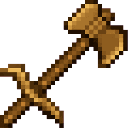
- Hold the Zone Shaper and mine a block to set point 1.
- Aim at another block within 8 blocks and use the Zone Shaper on it to set point 2.
- The item displays the selected cuboid’s coordinates and ready-to-use commands in chat.
- Copy a command from chat, replace its placeholders with valid block names or coordinates, and run it to transform the zone.
The Zone Shaper selects an area; it does not automatically fill, delete, replace, or copy blocks.
Overview
Zone Shaper is a selection tool for working with large rectangular areas. Select two opposite points, then use the displayed /fill or /clone commands to modify thousands of blocks at once.
Selections are kept separately for each player and must be made within the same dimension.
What It Adds
- Zone Shaper selection tool
- Two-point cuboid selection
- Coordinate output for the selected area
- Ready-to-use commands for:
- Filling an area
- Replacing specific blocks
- Deleting blocks
- Copying an area
How To Use
Set Point 1
Hold the Zone Shaper and mine a block. The block’s coordinates become point 1, and the item tells you to select a second point.
Mining still behaves normally, so the block you mine may be destroyed.
Set Point 2
Aim at the second block and use the item on it. The block must be within the tool’s 8-block view range.
After point 2 is set, the Zone Shaper reports the complete selection and shows command templates in chat.
If point 1 was set in another dimension, point 2 is rejected. Set point 1 again in your current dimension.
View the Commands Again
Use the Zone Shaper normally after selecting two points to display the selection coordinates and command templates again.
If no complete selection exists, the item tells you to mine a block for point 1 and use the item on another block for point 2.
Abilities And Mechanics
The two points define an axis-aligned rectangular prism. The tool automatically uses the smallest and largest X, Y, and Z values, so the points can be selected in any order.
The displayed coordinates follow this format:
minimum X minimum Y minimum Z maximum X maximum Y maximum Z
The selected area includes the blocks at both endpoints.
Fill a Zone
Replace <block> with the block you want to place:
/fill <coordinates> <block> replace
For example:
/fill 10 64 10 20 70 20 minecraft:stone replace
Replace One Block Type
Replace <new_block> with the replacement block and <old_block> with the block to search for:
/fill <coordinates> <new_block> replace <old_block>
This changes only matching blocks inside the selection.
Delete a Zone
Replace every block in the selection with air:
/fill <coordinates> air
Use this carefully, especially for large selections.
Copy a Zone
Copy the selected area to a new starting position:
/clone <coordinates> <destination_x> <destination_y> <destination_z>
The destination coordinates are the corner where the copied selection begins.
Crafting And Obtaining
Craft one Zone Shaper at a crafting table using the displayed recipe. Its ingredients include a wooden axe, a wooden pickaxe, and sticks.
The Zone Shaper is an equipment item that can also be used as a basic mining tool. It has 36 durability, deals 3 damage, and has improved digging speed for several common stone, dirt, and log blocks.
Progression And Strategy
- Select corners carefully before running a command; large fill and delete operations can affect many blocks.
- Use the replacement command when you want to preserve everything except one block type.
- Use a small test selection first to confirm the coordinates and block names.
- Keep the displayed coordinates intact when copying commands from chat.
- If you need a new selection, mine another block with the Zone Shaper to replace point 1.
How to install
Download the mod and follow the step-by-step installation guide.
Players also liked
Ancient Egyptian Night Sky

Transform blue terracotta into colorful Egyptian night sky paintings seen in ancient tombs.
Sandstone Sun Temple


A vast Egyptian Temple complex perfect for a little bit of extra decorating and then dress your villagers to meet the Pharaoh... or dress one of your villagers up as the Pharaoh!

Dragonfire Katana


create a minecraft item that has the following description: 'Legendary weapons sword and a dragon katana '
Trader Terminal


The Trader Terminal is a redesigned, sci‑fi one‑block‑tall vending cabinet that fits on a single‑block footprint. To use it, craft a Terminal Placer from iron, redstone, and an emerald, place the terminal in a single‑block space, then interact (use/tap/right‑click) to open the sh…

Lucky Mystery Potion

Sip the Lucky Mystery Potion and trigger one of a hundred surprising, rewarding effects. This mod was made for your enjoyment! Please consider adding to your favorites! (Item Texture made by PBnJarrett)
This mod is licensed under the CreativeMode Mods License.