

Description
Freeze time itself, turn the sky green, and move freely while everything else stands still.
Mod Wiki
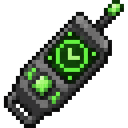
Chrono Freeze Remote
Quickstart
- Craft a Chrono Freeze Remote and a Time Shift Remote.
- Hold the Chrono Freeze Remote and use it to freeze the world. The sky turns green, while you can move freely. Use the remote again to resume time.
- Hold the Time Shift Remote and use it normally to activate Slow Mode.
- Sneak and use the Time Shift Remote to open the mode menu. From there, choose Slow Mode, Fast Forward, Purple Time Anchor, Yellow Rewind Remote, overclock speed, or turn time mode off.
- Keep the active remote in your main hand. Freeze mode hides your armor and offhand item, but leaves the main-hand remote usable so you can end the effect.
Overview
Chrono Freeze Remote adds several time-control remotes:
- Chrono Freeze Remote — stops world simulation while you move.
- Time Shift Remote — opens the time-mode selector and starts Slow Mode with a normal use.
- Time Shift Remote (Slow Mode) — blue-sky slow motion.
- Time Shift Remote (Fast Forward) — red-sky acceleration, or an undo for the latest rewind.
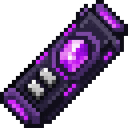
- Purple Time Anchor Remote — saves and restores a world moment.
- Yellow Rewind Remote — restores a recorded world state from 1–7 days earlier.
Only one major time mode runs at a time. Starting another mode ends the current one.
What It Adds
| Remote | Main interaction | Visual effect |
|---|---|---|
| Chrono Freeze Remote | Use to toggle the freeze | Green sky |
| Time Shift Remote | Use to start Slow Mode; sneak-use for the menu | Time-mode controls |
| Time Shift Remote (Slow Mode) | Use to stop or switch modes; sneak-use for the menu | Blue sky |
| Time Shift Remote (Fast Mode) | Use to start or stop Fast Forward, or undo a rewind | Red sky |
| Purple Time Anchor Remote | Use to save a moment; sneak-use for anchor options | Purple sky and rift |
| Yellow Rewind Remote | Use to choose how many days to rewind | Yellow remote |
All remotes are single items and can be held in the offhand during normal play.
How To Use
Chrono Freeze Remote
Use the Chrono Freeze Remote to activate the freeze.
While active:
- You can walk, look around, and interact with the world.
- Mobs, players, projectiles, dropped items, and other entities remain in place.
- Daylight, weather, fire, random ticks, and mob spawning stop.
- Your armor and offhand equipment are hidden temporarily.
- You become invisible so hostile mobs do not acquire you as a target.
- The sky turns green.
Use the Chrono Freeze Remote again to end the freeze. Frozen entities resume from their saved positions and projectiles continue with their previous motion.
Time Shift Remote Menu
Sneak and use a Time Shift Remote to open the selector. The menu includes:
- Slow Mode
- Fast Forward
- Purple Time Anchor
- Yellow Rewind Remote
- Enable/Disable overclock speed
- Turn time mode off
Selecting a mode changes the remote appearance in your inventory to match the active mode. Turn time mode off to return to the normal Time Shift Remote.
Slow Mode
Slow Mode turns the sky blue and greatly slows entities other than the controlling player.
- Living entities receive a slowing effect.
- Projectiles, dropped items, and other moving entities travel at reduced speed.
- The daylight and weather cycles pause.
- You can move normally while the rest of the world crawls.
Use the active remote again or choose another option from the sneak-use menu to end Slow Mode.
Fast Forward
Fast Forward turns the sky red and accelerates the world.
- Living entities receive a speed boost.
- Projectiles, dropped items, and other moving entities are accelerated.
- The daylight clock advances extremely quickly.
- Random ticks run at a greatly increased rate.
Use the red remote again to stop Fast Forward when it is running normally.
Overclock Speed
Choose Enable overclock speed from the time-mode menu to give yourself a personal speed boost while Slow Mode, Fast Forward, or Anchor mode is active. Choose the same option again to disable it.
Crafting And Obtaining
Chrono Freeze Remote
Craft the main freeze remote at a crafting table:


Time Shift Remote
Craft the base time-control remote:


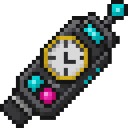
The Slow Mode and Fast Forward remotes are selectable forms of the Time Shift Remote. They do not require separate crafting recipes.
Purple Time Anchor Remote
Upgrade a Time Shift Remote with amethyst and echo shards:


Yellow Rewind Remote
Upgrade a Time Shift Remote with gold and a clock:


Creative and Command Obtaining
The items can also be obtained with /give:
| Item | Command |
|---|---|
| Chrono Freeze Remote | /give @s com_chrono_freeze_remote_tcn7mpdy:my_sword |
| Time Shift Remote | /give @s com_chrono_freeze_remote_tcn7mpdy:time_remote |
| Slow Mode remote | /give @s com_chrono_freeze_remote_tcn7mpdy:time_remote_slow |
| Fast Forward remote | /give @s com_chrono_freeze_remote_tcn7mpdy:time_remote_fast |
| Purple Time Anchor Remote | /give @s com_chrono_freeze_remote_tcn7mpdy:time_remote_anchor |
| Yellow Rewind Remote | /give @s com_chrono_freeze_remote_tcn7mpdy:time_remote_rewind |
Abilities And Mechanics
Saving a Time Anchor
Hold the Purple Time Anchor Remote and use it without sneaking.
- Using it in the air saves your current position.
- Using it on a block saves a position directly above that block.
- A new save replaces your previous anchor.
The anchor records the saved block area, entities, projectiles, dropped items, and other players. It also records the positions and dimensions of other players at the time of saving.
Opening the Anchor Rift
Sneak and use the Purple Time Anchor Remote, then choose Open saved time rift.
A purple rift appears in front of you for about 30 seconds. Walk into it before it disappears to restore the saved moment.
Restoring an anchor:
- Returns you to the saved location.
- Restores the saved blocks in a 64×64 area around the anchor through the full world height.
- Restores saved entities and their motion.
- Removes non-player entities created after the anchor was saved.
- Returns other recorded players to their saved positions and dimensions.
- Leaves your inventory and equipment under your control.
Anchor restoration can affect entities and players across the loaded dimensions, so use it carefully in multiplayer worlds.
While Anchor mode is active, moving projectiles in your dimension are redirected toward you. You can also enable overclock speed from the sneak-use menu.
Rewinding the World
The Yellow Rewind Remote records a rolling history of up to seven days. The first snapshot is created when the history begins, and additional snapshots are recorded at day boundaries.
Use the Yellow Rewind Remote normally to open the rewind form, then enter a number from 1 to 7. The world must have enough recorded history for the selected number of days.
A rewind restores:
- Blocks in the recorded 64×64 area through the full world height.
- Mobs, projectiles, dropped items, and other non-player entities.
- The Overworld time of day from the selected snapshot.
Players are not rewound. Player positions, inventories, and equipment remain unchanged. Daylight, weather, and random ticks pause while the restoration runs and resume afterward.
Use the Yellow Rewind Remote again while a rewind is in progress to stop the operation.
Undoing a Rewind
After a completed rewind, the red Fast Forward remote changes function:
- Use the red remote to restore the exact world state captured immediately before the rewind.
- Wait for the restoration to finish.
- The saved undo point is consumed, and Fast Forward becomes its normal time-acceleration mode again.
Progression And Strategy
- Start with Slow Mode to observe how mobs, projectiles, and dropped items respond to altered time.
- Use Freeze mode to safely reposition, inspect combat situations, or set up a build while the rest of the world is paused.
- Save a Purple Time Anchor before experimenting with dangerous redstone, combat, or terrain changes.
- Stand close to the purple rift when it appears; it lasts only about 30 seconds.
- Allow the rewind history to record several day boundaries before relying on a long rewind.
- Use short rewinds first. Rewinds affect recorded blocks and non-player entities, while players remain in their current positions.
- In multiplayer, warn other players before restoring an anchor or rewinding, since their locations or nearby world state may be restored.
How to install
Download the mod and follow the step-by-step installation guide.
Players also liked

Ender Dragon Crossbow


A soul-bound dragon weapon that evolves from fiery crossbow to void-tearing lance.
Black Ember Chainsaw Blade


Wield the Black Ember Chainsaw Blade and carve through anything in your path.


Idle Death Gamble


Take a rare casino-style gamble to become immortal, swift, and devastating.
This mod is licensed under the CreativeMode Mods License.