

Description
Boss Progression Checklist is a persistent, world-global boss journal that tracks confirmed boss-bar entities (vanilla Wither and Ender Dragon always included; modded bosses appear if listed in the config or actually spawn with a boss event) and orders them by max health, with the Ender Dragon shown in a Final Boss section. Press the configured keybind (default B) to open the themed open-book journal: the left page shows a scrollable checklist of color-coded boxes (green = defeated, gold = current suggested target, red = not defeated) and the right page shows the bestiary, with sharper text, better spacing, pixel-aware name wrapping, an improved drops grid with tooltips and multi-page support, and a fixed viewport that dynamically scales and centers boss previews. The mod now acts purely as a guide — defeating any detected boss will credit it even if you kill it out of the suggested order, and nothing in the mod blocks or prevents boss spawns or progression — while retaining persistent tracking, health-based ordering, suggested-target highlighting, and the commands /bosschecklist rescan, status, reset, complete, and unlock.
Mod Wiki
Boss Progression Checklist
Quickstart
- Join any world with the mod installed.
- Press B (default keybind, rebindable in Controls → Boss Progression Checklist) to open the journal.
- The left page lists every detected boss in order of difficulty. Select a boss to view its bestiary entry on the right page.
- Work your way down the list — the gold-highlighted entry is your current suggested target.
No crafting or special items are required. The journal is always available from the keybind.
Overview
Boss Progression Checklist is a world-global boss journal and bestiary. It automatically detects bosses — vanilla ones (Wither and Ender Dragon) are always tracked, and modded bosses are picked up if they spawn with a boss-bar event or are listed in the config file. Bosses are sorted by max health, with the Ender Dragon placed last in a dedicated Final Boss section.
The mod is a guide only. It never blocks you from fighting a boss out of order or prevents any spawns. Defeating a boss in any order still marks it as complete.
Progress is saved per world and persists across sessions.
What It Adds
- A themed open-book journal screen accessible via keybind or command.
- A scrollable boss checklist (left page) with color-coded status boxes.
- A bestiary panel (right page) showing a live boss preview, stats, and drop grid with tooltips.
- Persistent, world-global defeat tracking.
- A set of operator commands for manual management.
How To Use
Opening the Journal
Press B in-game, or run /bosschecklist in chat. The journal opens as an illustrated book.
Reading the Checklist (Left Page)
The left page shows all detected bosses sorted from weakest to strongest, with the Ender Dragon separated under a Final Boss heading at the bottom.
Each entry has a colored status box:
| Color | Meaning |
|---|---|
| 🟩 Green | Defeated |
| 🟨 Gold | Current suggested target |
| 🟥 Red | Not yet defeated |
Click any boss entry to select it and load its details on the right page. Scroll the list with the mouse wheel.
Reading the Bestiary (Right Page)
The right page shows for the selected boss:
- A live rendered preview of the boss entity, dynamically scaled and centered.
- Name, Max Health, Mod Origin, and Dimension.
- Status (Defeated / Not Defeated).
- Armor value (if applicable).
- A drops grid showing items from the boss's loot table, with tooltip on hover. Multi-page support is available when a boss drops many items. The Ender Dragon's entry also includes the Dragon Egg.
- A guide requirement line indicating which boss is suggested before this one (or "None").
Abilities And Mechanics
Boss Detection
The mod detects bosses through three methods:
- Vanilla whitelist — Wither and Ender Dragon are always included.
- Runtime boss-bar detection — any living entity that spawns with a boss-bar event is automatically registered.
- Manual config — you can list additional entity IDs in the config file (
boss_progression_checklist_bh7o26mh.jsonin the config folder) under"manualBossIds".
Ordering
Bosses are ordered by max health (ascending). The Ender Dragon always appears last regardless of health. Within the same health value, bosses are sorted alphabetically by ID.
Defeat Tracking
When any detected boss dies, all online players are notified in chat and the checklist updates immediately. Defeating bosses out of suggested order is fully supported — the kill is credited regardless of sequence.
Progression And Strategy
- The gold (suggested target) entry on the checklist is the lowest-health undefeated boss — a natural health-gated progression path.
- You are never locked out of fighting any boss. The suggested order is purely advisory.
- Use the checklist to gauge how many bosses remain and which modded bosses you have yet to encounter.
- The bestiary drop grid helps you plan what resources to expect from each fight.
Commands
All commands begin with /bosschecklist. Some require operator permission (level 2).
| Command | Permission | Description |
|---|---|---|
/bosschecklist | All players | Opens the journal (or prints status if run from console). |
/bosschecklist status | All players | Prints all detected bosses with health, status, and guide requirements to chat. |
/bosschecklist rescan | Operator | Re-scans the entity registry, config, and all loaded entities for bosses. |
/bosschecklist reset | Operator | Clears all defeat progress and guide overrides. Detected boss entries are kept. |
/bosschecklist complete <boss_id> | Operator | Manually marks a boss as defeated. Tab-complete suggests known boss IDs. |
/bosschecklist unlock <boss_id> | Operator | Highlights a boss as available in the guide regardless of order. |
How to install
This Java mod can be used on Windows and Mac PCs with the CreativeMode Launcher or any Minecraft launcher of your choice.

1. Download and install the new CreativeMode Launcher

2. Click to play on the top of the screen.
3. That's it — launches instantly. No complicated setup required.
Want to use on a different launcher? Download mod and manually install.
Players also liked
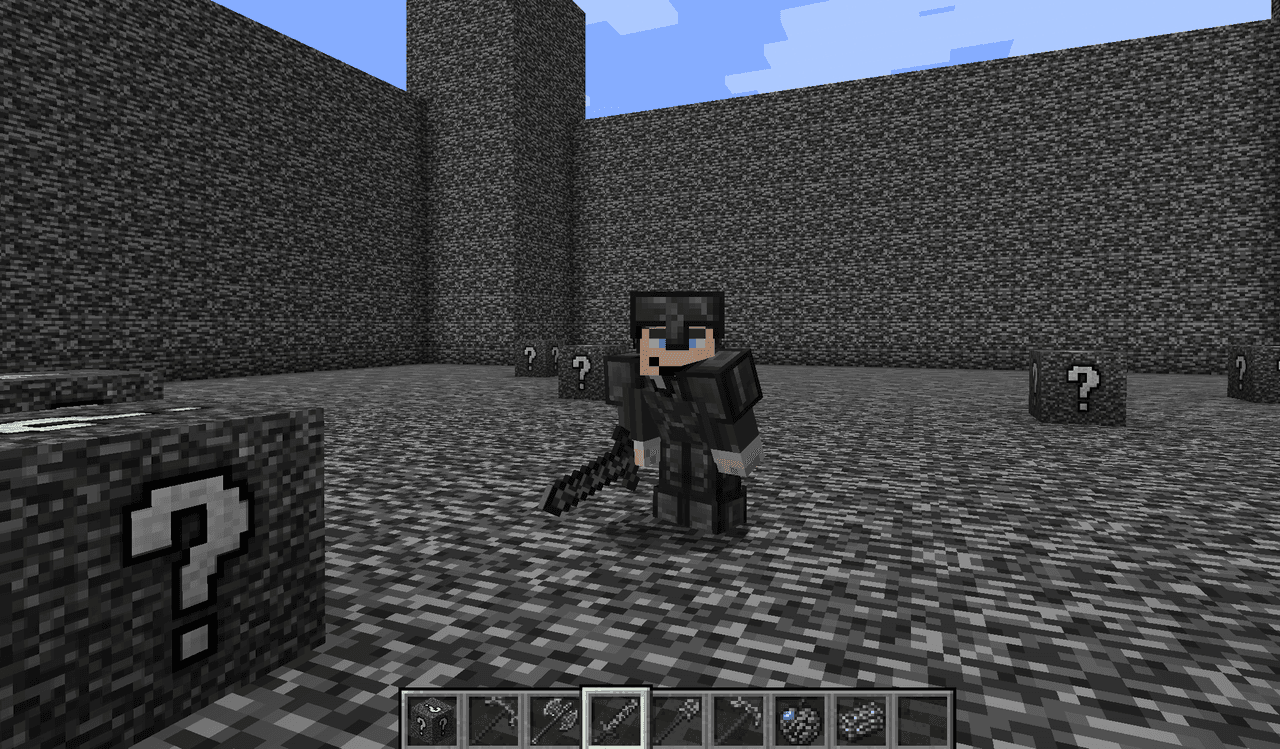
Bedrock lucky block


Break Bedrock Lucky Blocks for insane loot, bedrock-bending surprises, and colorful pizza rewards.

Bandana Wolf


Encounter the Bandana Wolf, a giant wolf wearing a glowing rune-etched bandana that prowls the forests with chilling howls and devastating melee strikes. Combine salmon, cod, and the legendary Eternal Bandana to summon the Grizzly Boss, a colossal bear whose thunderous charges an…
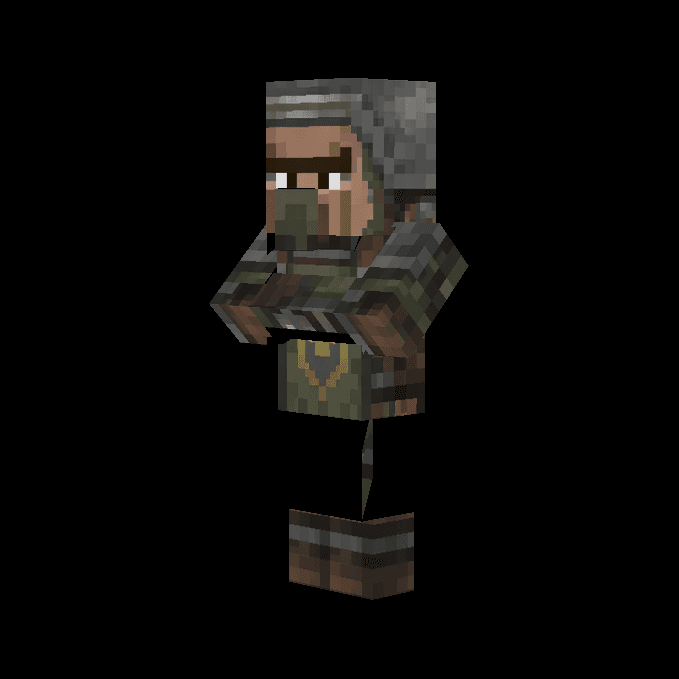
Command Soldier


This mod adds the Command Soldier, a friendly villager-like mob that spawns naturally in the Overworld and follows your typed commands in chat. You can order nearby Command Soldiers to follow you, stay in place, or attack specific mobs by typing commands like "FOLLOW", "STAY", or…
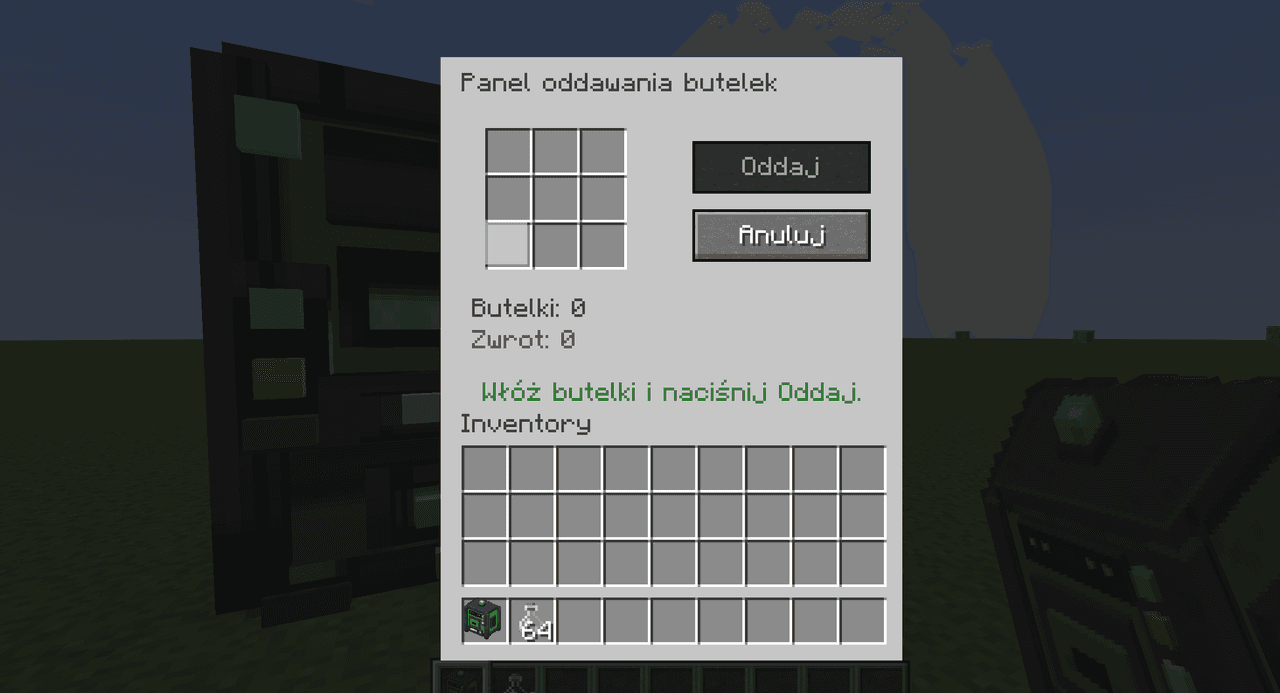
Butelkomat System


Wrzuć butelki do 3x3 panelu i zamieniaj na złote samorodki, teraz z widocznymi kratkami.

D20


This mod adds a throwable D20 die. Right-click to throw with a 2-second cooldown, On hit, it rolls 1–20 (displayed in chat with particles): 1 is a Critical Fail (0 damage), 2–19 deal damage equal to the roll with a small knockback that scales with the natural roll, and a natural…
This mod is licensed under the CreativeMode Mods License.