

Description
Create a fully functional Minecraft Bedrock speaker system. Add realistic, large black professional speakers with detailed subwoofers and speaker grills. Players can place speakers anywhere in the world. Add a central Music Control Console that controls every placed speaker. Players can interact with the console to insert any Minecraft music disc, including custom music discs from other add-ons and resource packs. The console must play the actual music from the inserted disc through all connected speakers. The console must have play, pause, stop, next track, previous track, and volume controls. Add a speaker management menu where players can connect, disconnect, activate, deactivate, and control individual speakers or all speakers together. Allow players to place unlimited speakers and connect them to the same console. Music must play across a 200-block radius around the connected speakers. All players within range must hear the same music synchronized at the same time, even when far away from the console. Removing the disc must stop playback. Make everything fully functional in multiplayer. Speakers must not be decorative. Ensure compatibility with Minecraft Bedrock and optimize the entire system for older Android phones. Keep the interface clean, simple, and easy to use.
Mod Wiki
Blockwave Sound System
Quickstart
- Craft a Blockwave Music Console and one or more Blockwave Speakers using the recipes below, or find them in the Creative inventory.
- Place the console and speakers where you want them. Newly placed speakers are connected and active by default.
- Hold a music disc and interact with the console to insert it. The console menu opens; choose Play / Resume to start.
- Use Speaker Manager to adjust speakers, or the console menu to pause, stop, skip tracks, change volume, or eject the disc.
Overview
Blockwave provides a music console and large speaker units for playing music discs around your world. The console controls the speakers together, and its Speaker Manager lets you adjust each speaker individually.
What It Adds
| Item | Use |
|---|---|
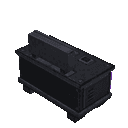
| Blockwave Music Console | Insert a disc and control playback and speakers. |
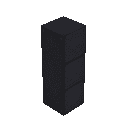
| Blockwave Speaker | Place around your build to provide music coverage. |
How To Use
Interact with the console while holding a music disc to insert one. The disc is taken from your hand. If another disc is already loaded, it is returned to your inventory when replaced. Choose Eject Disc in the console menu to stop playback and get the loaded disc back.
Speakers register with the system when placed. Open Speaker Manager from the console to connect or disconnect them, activate or deactivate them, and adjust their individual volume. The manager also has Connect All, Disconnect All, Activate All, and Deactivate All options. Select a speaker to open its controls; use the page buttons to browse the list.
Crafting And Obtaining
Craft either item at a crafting table:
Blockwave Music Console


Blockwave Speaker


Abilities And Mechanics
- The console menu has Play / Resume, Pause, Stop, Previous Track, Next Track, Volume Down, Volume Up, Speaker Manager, and Eject Disc.
- Console volume changes in 10% steps. Individual speaker volume can also be adjusted in the Speaker Manager.
- Connected, active speakers provide coverage up to 200 blocks away in the same dimension. Volume fades with distance; a player needs to be within range of at least one such speaker to hear playback.
- Playback starts for players currently in range when you start or refresh it. If you move into range after playback has begun, choose Play / Resume again.
- Next and Previous change the sound being played; they do not swap the disc item shown as loaded. Custom discs can work when they provide a recognizable record sound.
Progression And Strategy
Place speakers throughout the area where you want music, then use the manager’s connection and activation controls to shape coverage. Adjust speaker and console volume to suit the space, and keep a disc loaded so you can start playback whenever you need it.
How to install
Download the mod and follow the step-by-step installation guide.
This mod is licensed under the CreativeMode Mods License.