

Description
Use your phone to summon and customize Lightgliders, ride hoverboards, and pilot a reworked drone with five-slot storage.
Mod Wiki
Cab Phone
Quickstart
- Craft the Car Phone:


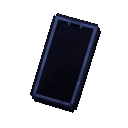
- Use the Car Phone to open the Apps screen.
- Open the Car App and choose Summon Walking Car.
- Ride the summoned car using normal movement controls. Double-tap sprint to gradually accelerate.
- Try the Hoverboard App to transform into a floating hoverboard. To use the Boating App, move the car into water first.
- Open the Drone App and choose Launch Drone. Pilot it with WASD, use Space to ascend, and sneak to descend.
- Press R to return from the drone camera to your player. Use Dismiss Drone when you are finished with it.
Important controls:
- J — Summon Walking Car
- K — Summon or transform to Boat
- H — Open the Drone App or leave drone mode
- R — Return to your player while piloting the drone
- I — Self-destruct the active vehicle or drone
- B — Boost a vehicle or a drone equipped with Drone Thrusters
Overview
Cab Phone adds a multifunctional phone for summoning and customizing a Lightglider vehicle. The vehicle can operate as a walking car, a sport boat, or a floating hoverboard. The phone also controls a remote green camera drone with equipment modules and five storage slots.
The main phone item is named Car Phone in-game.
What It Adds
- Car Phone — Opens the vehicle, customization, and drone apps.
- Lightglider — A summonable vehicle with car, boat, and hoverboard forms.
- Vehicle customization — Repaint different parts of each vehicle form.
- Reworked Drone — A remotely piloted camera drone.
- Drone modules:
- Drone Thrusters
- Drone Laser Cannon
- Drone Bullet Cannon
- Drone Missile Launcher
- Basic Bench — A placeable seat that players can sit on.
How To Use
Car Phone
Hold the Car Phone and use it to open the phone interface. From the home screen, choose an app:
| App | Function |
|---|---|
| Car App | Summon or dismiss the walking car and customize car parts |
| Boating App | Transform the car into a sleek sport boat |
| Hoverboard App | Transform the car into a floating hoverboard |
| Drone App | Launch, resume, control, or dismiss the drone |
Walking Car
Open the Car App and select Summon Walking Car. The Lightglider appears as your ride, and the player is hidden while the vehicle is active.
Use normal movement controls to steer. Sprinting provides acceleration; double-tap sprint to begin accelerating gradually. Select Dismiss Ride in the Car App when you want to remove the active ride.
You can also use J to summon the walking car and I to self-destruct the active vehicle.
Sport Boat
Move the summoned car into water, then open the Boating App. The app displays Need Water until the vehicle is in a suitable position.
When the car is in water, select Transform to Boat. Use Return to Car to leave boat form. The boat has its own boat-part colors, allowing it to be customized separately from the car.
The K key provides a quick boat-mode control.
Hoverboard
Open the Hoverboard App and select Transform to Hoverboard. The Lightglider floats above the ground in hoverboard form and can be ridden across the landscape.
Use normal movement controls to surf the hoverboard. Select Return to Car to leave hoverboard form. Hoverboard parts and colors are managed separately from car and boat customization.
Boosting
Press B to activate the Lightglider boost while riding the vehicle. Boosting gives the active form a short burst of extra performance and then requires a cooldown before it can be used again.
Drone Operation
Open the Drone App and select Launch Drone. If a drone is already available, use Resume Flight instead.
While piloting:
- WASD — Fly forward, backward, and sideways
- Space — Fly upward
- Sneak — Fly downward
- Left-click — Fire an equipped weapon module
- B — Boost when Drone Thrusters are equipped
- R — Exit the drone camera and return to your player
Your player remains in remote-pilot mode while the drone is under control. Use Dismiss Drone from the app when you want to remove it rather than merely leave its camera view.
Drone Bay
While piloting the drone, open the Drone Bay to manage its equipment and storage.
- Equipment Modules has three module positions.
- Storage provides five slots for carrying items.
- Place weapon modules in the equipment positions to enable their firing functions.
- Place Drone Thrusters in an equipment position to enable the drone boost.
Available equipment modules are Drone Thrusters, Drone Laser Cannon, Drone Bullet Cannon, and Drone Missile Launcher.
Customization
The vehicle customization screens provide:
- Car Parts
- Boat Parts
- Hoverboard Parts
- Color Palette
Choose the part you want to change, then click a color in the palette. The interface shows the currently selected part and applies the chosen color to that section.
Each vehicle form has its own appearance settings, so changing boat or hoverboard colors does not require using the car customization screen.
Crafting And Obtaining
Basic Bench
Craft a Basic Bench from oak planks and sticks:


Place the bench like a normal block. Use it while standing nearby to sit down. Sneaking while interacting avoids sitting on it.
The bench can be mined with an axe and drops itself when broken.
Car Phone
Craft the Car Phone with leather, blue dye, string, and an ender pearl:
Use the phone directly from your hand whenever you want to open its apps.
Drone Equipment
The drone equipment items are:
- Drone Thrusters
- Drone Laser Cannon
- Drone Bullet Cannon
- Drone Missile Launcher
Equip them through the drone's Equipment Modules interface. Weapons can be fired with left-click while piloting, while Drone Thrusters provide the B boost control.
Abilities And Mechanics
- The Lightglider can switch between walking-car, boat, and hoverboard forms.
- Boat transformation requires the vehicle to be in water.
- The hoverboard floats above the ground and supports fast traversal.
- Vehicle boosting is temporary and has a cooldown.
- The drone is controlled remotely as a separate camera viewpoint.
- The drone supports three equipment modules and five storage slots.
- A weapon module must be equipped before the drone can fire.
- Dismiss Ride and Dismiss Drone remove the active vehicle or drone; leaving a camera view does not serve the same purpose.
- I activates self-destruct for the active vehicle or drone, so use it carefully.
Progression And Strategy
- Craft the Car Phone early so you can test every form without building separate vehicles.
- Use the walking car for general travel, the boat for waterways, and the hoverboard for fast movement across land.
- Customize each form independently so the car, boat, and hoverboard are easy to distinguish.
- Equip Drone Thrusters when scouting or repositioning matters more than weapon capacity.
- Equip weapon modules when using the drone for ranged attacks, and keep the five storage slots available for supplies.
- Exit the drone camera with R when you need to return to your player without dismissing the drone.
How to install
This Java mod can be used on Windows and Mac PCs with the CreativeMode Launcher or any Minecraft launcher of your choice.

1. Download and install the new CreativeMode Launcher
2. Click to play on the top of the screen.
3. That's it — launches instantly. No complicated setup required.
Want to use on a different launcher? Download mod and manually install.
This mod is licensed under the CreativeMode Mods License.