

Description
Record your sessions and play them back with actors that preserve each player’s exact skin, model, overlays and natural movement — just record as usual and open your replay from the in-game browser to watch, scrub and export sessions. The system is built for stability and scale: it concentrates recording on nearby entities, snapshots terrain gradually, deduplicates repeated block-state changes, ignores synthetic neighbor updates, enforces memory and per-tick limits, and flushes saves asynchronously so big fights, farms and long timelines replay reliably; visual fidelity during playback is improved for held and ranged items and item ghosts are rendered safely with restored shader state. If the Epic Fight mod is present, an optional lightweight compatibility bridge records and replays first-stage combat states (battle mode on/off, combat locomotion and idle/walk/run flags, combat pose, weapon category and transition state) and routes replay actors through Epic Fight’s renderer when available, otherwise it falls back to a stable basic holding pose; advanced Epic Fight skills, combos and special abilities are intentionally not recorded, and debug logs report detection and sync status.
Mod Wiki
Cinematic Replay Recorder
Quickstart
- Load any world — recording starts automatically. A small
● CRR F9 nagrywaj F8 statusstrip at the bottom confirms it is active. - Stop and save — hold Sneak and press F9, or type
/crr stop. The file saves in the background; keep playing immediately. - Open the recordings browser — click CRR: Nagrania on the Minecraft title screen, or run
/crr listin-world. - Play a recording — select an entry and click Odtwórz, or run
/crr play <id>. A cinematic free camera activates inside the current world. - Fly the camera — hold W/A/S/D to move, Space to rise, Shift to descend, drag the mouse to look.
- Control the timeline — press , (comma) to pause/resume, I to seek −3 s, K to seek +3 s.
- Exit playback — press ESC and choose the exit option.
Overview
Cinematic Replay Recorder is a Java Edition 1.20.1 (Fabric) mod that automatically records your full game session — player movement, nearby entity activity, block changes, particles, world time, and weather — from world load until you stop or exit. Recordings play back through a smooth cinematic free camera inside the live 3D world.
The system is built for stability and scale: recording focuses on nearby entities, deduplicates repeated block-state changes, ignores synthetic neighbour notifications, enforces memory and per-tick limits, and flushes saves asynchronously so large fights, farms, and long timelines replay reliably.
If the Epic Fight mod is installed, a lightweight first-stage compatibility bridge records and replays basic battle-mode states each tick, so combat idle, walk, run, and weapon holding poses appear correctly in the replay. When Epic Fight is absent, the system is a strict no-op; no regressions or errors occur.
What It Adds
- Automatic continuous recording — captures every tick from world load until stopped or world exit.
- True in-world tick simulation — one persistent replay actor per recorded entity; the renderer never writes back to actor transforms.
- Authentic player skins with full overlay layers — complete profile (UUID, name, textures, cape, slim/default model flag) saved at recording time.
- Epic Fight basic combat replay (optional, requires Epic Fight) — tick-by-tick recording and playback of first-stage battle-mode states; see the dedicated section below.
- Correct trident / harpoon replay — tip always points forward during idle, ready-to-throw, aiming, and throw phases.
- Stable crossbow replay — clean two-state system (charging → charged/aiming) with the tensioned model and correct aiming pose once loaded.
- Faithful death animation replay — hurt flash, death rotation, full 20-tick countdown; entity removed only after animation completes.
- Comprehensive entity capture — players, hostile mobs, passive animals, slimes, projectiles, and dropped items within 96 blocks of the recording player each tick (up to 2 048 entities per frame).
- Real-delta block recording — only genuine placed/removed/changed block states stored.
- Comprehensive vanilla particle replay — up to 256 particles / 64 samples per tick; critical particles bypass caps; death effects always preserved.
- Full vanilla animation set — walking, sprinting, sprint+jump, body yaw, crouch, fall-flying, swimming, jump flags.
- Complete equipment replay — all six equipment slots updated every simulation tick.
- Dropped-item ghost rendering — visual only; cannot be picked up.
- Full-timeline pause freeze — halts all entity ticks, world updates, block updates, particle emission, AI, movement, and animation globally while the camera stays free.
- Full input isolation — all gameplay keybindings and mouse actions suppressed during replay.
- CRR: Nagrania button on the Minecraft title screen.
- Cinematic free camera — separate, invisible, collision-free camera entity.
- Orbit camera mode — tracks and orbits a replay target at a configurable radius (6–48 blocks, default 9).
- Camera keyframe path — save positions with J and play a smooth automated path with C.
- Playback speed presets — ×0.25, ×0.5, ×1, ×2, ×4 (keys 1–5).
- Cinematic HUD — timeline bar with playhead, current time / total duration, play/pause indicator.
- Auto-refreshing replay browser — list refreshes every time a playback session ends.
- Built-in profiling —
/crr statusreports tick cost, world-change count, duplicate states skipped, memory usage, disk I/O times, and async write queue depth.
How To Use
Recording
Recording starts automatically when you load a world. Manual controls:
| Action | Hotkey | Command |
|---|---|---|
| Start recording | F9 (tap) | /crr start |
| Stop and save | Sneak + F9 | /crr stop |
| Check status / profiling | F8 | /crr status |
| Bookmark a moment | — | /crr marker <name> |
| Save a camera keyframe | — | /crr keyframe <name> |
When you stop recording, the file is saved asynchronously in the background — no freeze, no FPS drop.
Browsing and Playing Recordings
From the title screen:
- Click CRR: Nagrania.
- Recordings are listed with ID, duration, frame count, block-change count, and creation date.
- Click Odtwórz to start playback.
- Click Usuń to permanently delete a recording.
- Odśwież rescans all recording folders.
- Powrót returns to the previous menu.
While in-world (commands):
| Command | Effect |
|---|---|
/crr list | List all recordings for this world |
/crr play <id> | Start playback at normal speed |
/crr play <id> <speed> | Start at a specific speed (0.05–8.0) |
/crr speed <value> | Change playback speed while playing |
/crr delete <id> | Permanently delete a recording |
/crr status | Show profiling and debug data |
Abilities And Mechanics
Replay Simulation and Rendering
Each replay actor is one persistent entity instance created at playback start and kept alive until playback ends. Every game tick the simulation writes position, yaw, pitch, body yaw, head yaw, velocity, sprint/crouch/swim/pose, equipment, limb swing, bow pull progress, crossbow charge state, hurt time, death time, animation state, and — when Epic Fight is present — a basic combat-state packet. The vanilla renderer interpolates between snapshots using the partial-tick value. Render code never mutates the actor's transform.
Simulated tick catch-up is bounded to a maximum of 8 replay ticks per render frame to prevent single-frame freezes during lag spikes.
Epic Fight Basic Combat Replay (requires Epic Fight mod)
When Epic Fight is installed, the mod activates a lightweight first-stage compatibility bridge. At startup the bridge logs whether Epic Fight was detected. Each entity tick a compact combat-state snapshot is saved alongside the normal replay data. No full model or skeleton data is stored — only eight lightweight fields:
What is recorded each tick:
| Field | Description |
|---|---|
| Battle mode enabled | Whether the entity has pressed R to enter battle mode |
| Combat locomotion state | Current movement type: vanilla, combat_idle, combat_walk, or combat_run |
| Combat idle state | True when in battle mode and standing still |
| Combat walk state | True when in battle mode and walking |
| Combat run state | True when in battle mode and running/sprinting |
| Weapon category | Epic Fight weapon type, or the held item ID if not registered |
| Combat pose | Current holding/combat pose name |
| Pose transition state | battle or vanilla, tracking the mode-switch transition |
What is replayed:
- Recorded battle-mode and locomotion states are applied back to the entity's Epic Fight patch each tick.
- If Epic Fight exposes a dedicated replay or cinematic bridge method, it is called directly with the full state map.
- Otherwise the system sets battle mode, locomotion motion, combat pose, and weapon category directly on the patch object via compatible setter methods, preserving smooth transitions without snapping or resetting poses every frame.
- Epic Fight state takes priority over vanilla arm-pose corrections during rendering.
- If Epic Fight's renderer hooks are available, actors are rendered through them; otherwise vanilla rendering continues as a stable fallback.
- Debug logs report Epic Fight detection status, battle mode enabled state, locomotion, combat pose, weapon category, and playback sync status each tick.
Supported states (stage one):
- Pressing R to toggle battle mode
- Combat idle pose
- Combat walk animation
- Combat run animation
- Basic weapon holding pose
- Vanilla ↔ battle mode transition
Not yet recorded (future stages):
- Skills, combo attacks, dodge, parry, guard, executions, special abilities, charged attacks, aerial combos.
When Epic Fight is absent:
The entire Epic Fight recording and playback path is completely inactive. Vanilla replay behaviour is unchanged.
Trident and Harpoon Animation
The trident (and any harpoon-like item) stays attached to the hand at all times. After vanilla applies the hand transform, the item model is rotated 180° horizontally so the tip always points forward during idle, ready-to-throw, aiming, and throw phases. Only the item's local rotation is adjusted — the hand pose and arm animation are unchanged.
Crossbow Animation
- Charging — both arms raise into the standard charge pose.
- Charged / aiming — once fully loaded the charged model activates immediately; the crossbow shows the tensioned, cocked model with the actor holding it out in the vanilla aiming pose.
- Firing — replayed at the correct tick with the appropriate arm-pose transition.
Stability and Memory Safety
- No chunk snapshot recording — only genuine block-state changes are stored.
- No neighbour update recording — synthetic adjacent-block notifications are not recorded.
- Block-state deduplication — duplicate changes dropped.
- Per-tick cap — at most 1 024 world changes stored per game tick.
- Total cap — at most 50 000 world changes stored per recording.
- Memory ceiling — recording stops accepting new world changes if estimated heap usage exceeds 256 MB.
- Entity capture radius — only entities within 96 blocks of the recording player per tick.
- Async save pipeline — file queued for background writing on stop; transient caches released immediately.
Particle Replay
- Up to 256 total particles / 64 samples per tick.
- Critical particles (SWEEP_ATTACK, CRIT, ENCHANTED_HIT, DAMAGE_INDICATOR, POOF, SMOKE, CLOUD) bypass density caps.
- Death effects always preserved.
- Block and dust particles limited to 4 per source; other particles to 8 per source.
Death Animations
Hurt flash triggered at the correct recorded tick, death rotation using the recorded angle, full vanilla 20-tick countdown, entity not removed until animation completes, death particles spawned at the correct position and tick.
Authentic Player Skins and Layer Visibility
Each player's full profile is serialised into the recording: UUID, display name, texture data, slim/default model flag, and the complete skin overlay layer mask (hat, jacket, sleeves, pants, cape).
Full-Timeline Pause
Pressing , (comma) toggles pause. While paused, all entity ticks, world and block-entity ticks, particle emission, block updates, AI, movement, and animation are frozen globally. Only the camera can move.
Timeline Controls
| Key | Action |
|---|---|
| , (comma) | Play / Pause (freezes entire replay world) |
| I | Seek −3 seconds |
| K | Seek +3 seconds |
Orbit Camera Mode
Press O to enter Orbit mode. The camera tracks and orbits the replay target.
| Property | Value |
|---|---|
| Minimum radius | 6 blocks |
| Default radius | 9 blocks |
| Maximum radius | 48 blocks |
| Control | Action |
|---|---|
| Mouse left/right | Rotate orbit azimuth |
| Mouse up/down | Tilt orbit elevation |
| ← / → | Rotate azimuth (keyboard) |
| ↑ / ↓ | Tilt elevation (keyboard) |
| W | Zoom in (decrease radius) |
| S | Zoom out (increase radius) |
Press O again to return to free camera mode.
Keyframe Path System
- Fly to a desired position and press J to save a keyframe.
- Repeat for additional positions.
- Press C to play a smooth cinematic path through all saved keyframes.
- Press C again to return to manual control.
Keyframes are cleared when you exit playback.
Free Camera Controls
| Action | Key / Input |
|---|---|
| Move forward | W (hold) |
| Move backward | S (hold) |
| Strafe left | A (hold) |
| Strafe right | D (hold) |
| Rise | Space (hold) |
| Descend | Shift (hold) |
| Look / rotate | Mouse |
| Rotate left / right | ← / → |
| Tilt up / down | ↑ / ↓ |
Cinematic Hotkeys (during playback)
| Key | Action |
|---|---|
| , (comma) | Toggle pause / resume (freezes entire replay world) |
| I | Seek −3 seconds |
| K | Seek +3 seconds |
| H | Show / hide the HUD overlay |
| O | Toggle orbit camera mode |
| J | Add a camera keyframe at current position |
| C | Toggle keyframe path playback |
| 1 | Speed ×0.25 |
| 2 | Speed ×0.5 |
| 3 | Speed ×1 (normal) |
| 4 | Speed ×2 |
| 5 | Speed ×4 |
| Tab | Cycle through recorded dimensions |
| ESC | Open menu → exit playback |
All other keys — inventory, map, mod menus, and gameplay hotkeys — are blocked while replay is active.
Global Keybindings (configurable in Controls menu)
| Default Key | Action |
|---|---|
| F9 | Tap to start recording; Sneak + tap to stop and save |
| F8 | Display current recording / profiling status |
| [ | Decrease playback speed |
| \ | Reset playback speed to ×1 |
| ] | Increase playback speed |
Cinematic HUD (during playback)
A semi-transparent panel near the bottom of the screen shows:
- A timeline bar with a glowing playhead.
- Current time / total duration (e.g.
0:12 / 0:45). - Play state —
PLAY(green) orPAUSE(amber). - Hint line —
, = pause/play I = rewind K = forward
The panel fades to a compact strip after inactivity and reappears when the camera moves. Press H to toggle the overlay entirely.
Recording HUD (during normal gameplay)
A small ● CRR F9 nagrywaj F8 status strip confirms recording is active. When a replay is playing via command while in-world, the strip also shows elapsed time, playback speed, frame count, block-change count, marker count, and keyframe count.
Exiting Playback
Press ESC and select the exit option. This is the only supported exit method. On exit:
- The replay session closes completely.
- The camera entity is removed.
- All ghost entities and item ghosts are cleared.
- The HUD is reset and the skin cache is cleared.
- The replay browser reopens with the list refreshed.
Important: There is no quick-exit key. Use ESC → exit exclusively.
Progression And Strategy
There are no crafting recipes or special items — the mod is fully automatic and keybind/command-driven.
Recommended workflow:
- Load your world — recording starts automatically. Confirm with F8 or
/crr status. - Mark key moments with
/crr marker <name>before fights, builds, or events you want to revisit. - Stop when done — Sneak + F9 or
/crr stop. The file saves asynchronously with no freeze. - Exit to the title screen, click CRR: Nagrania, then click Odtwórz on the desired recording.
- Compose your shots:
- Press 1 or 2 for slow motion to study fast action in detail.
- Hold W/A/S/D and move the mouse to frame subjects from any angle.
- Press O for Orbit mode to smoothly circle an actor; adjust radius with W / S.
- Press J at several positions, then C to play a smooth automated camera path.
- Press I / K to scrub the timeline in 3-second steps; press , to pause on a single frame.
- While paused the entire replay world freezes — mobs, projectiles, particles all stop. The camera remains free.
- Press H to hide the HUD for a clean view.
- Epic Fight combat replay — if Epic Fight is installed, the replay correctly shows battle-mode idle, walk, and run poses along with the basic weapon holding stance and the vanilla ↔ battle-mode transition. Use slow motion (1 or 2) to appreciate the pose transitions. Skills, combos, dodges, and advanced abilities are not yet captured and will appear as vanilla movement in the replay.
- Tridents and harpoons always point tip-forward in idle, aiming, and throw phases.
- Crossbows show the correct tensioned charged model once loaded.
- Death sequences play out with hurt flash, rotation, and death particles.
- Check performance with F8 or
/crr statusif you notice stutters — the profiling output shows tick cost, world-change count, duplicate states skipped, estimated heap usage, disk I/O times, and async write queue depth. - Multi-dimension sessions — press Tab to jump between the Overworld, Nether, End, or any modded dimension recorded in the session.
- Exit cleanly via ESC. Ghost entities are cleared, skins are released, and the recordings browser reopens.
- Clean up — click Usuń in the browser or run
/crr delete <id>to free disk space.
Caveats
- The CRR: Nagrania button is only on the title screen, not the pause menu. Exit to the title screen to access it, or use
/crr play <id>while in-world. - The only way to exit playback is ESC → exit. No other key closes the replay.
- All gameplay keybinds and mouse actions are fully blocked during playback.
- Entity capture is limited to a 96-block radius around the recording player. Entities farther away will not appear in playback.
- Chunk snapshots are disabled. Terrain during playback reflects the current live world. If the world has changed since recording, the terrain background may not exactly match.
- Neighbour/adjacent block updates are not recorded. Only genuine block-state changes appear in the replay.
- Block and world-change recording has hard caps (50 000 total, 1 024 per tick, 256 MB memory ceiling). In extremely active worlds, some changes beyond these caps will not be replayed. A warning is visible via
/crr status. - Dropped-item ghosts are visual only. They cannot be picked up or interact with the world.
- Epic Fight replay is first-stage only. Only battle-mode on/off, combat idle/walk/run locomotion, basic weapon holding pose, and the vanilla ↔ battle-mode transition are captured. Skills, combo attacks, dodges, parries, guards, executions, and advanced combat abilities are not yet recorded — those actions will appear as vanilla movement in the replay.
- Epic Fight recording is server-side. Only entities that are on the server during recording have their combat states captured. Client-only effects added purely on the client side are not recorded.
- Modded particles are replayed only if they use a vanilla-compatible particle type.
- Recordings are per-world; each recording is associated with the world save in which it was captured.
How to install
This Java mod can be used on Windows and Mac PCs with the CreativeMode Launcher or any Minecraft launcher of your choice.

1. Download and install the new CreativeMode Launcher

2. Click to play on the top of the screen.
3. That's it — launches instantly. No complicated setup required.
Want to use on a different launcher? Download mod and manually install.
Players also liked

Ruby Crucifix Of Storms


The Ruby Crucifix of Storms is a powerful divine artifact that allows you to call down lightning strikes from the heavens. Right-click while looking at any entity within 32 blocks to summon a devastating lightning bolt that strikes your target, followed by an explosive blast that…
The Virus Mod


Enter Hygron rifts to be pulled into the Hygron Core — a sprawling raid stronghold of themed sections (corrupted courtyards, labs, cathedrals, factories, mirror halls, sky bridges and a final castle) where you fight patrols, ambushes, minibosses and cinematic bosses to unlock pro…

Super Duper Stuff Menu


Press Shift+M to open the Super Duper Stuff Menu — a sleek item browser that hides vanilla items and creates alphabetically sorted tabs for each installed mod while still offering smart categories like Building Blocks, Cool Weapons, Tasty Treats, Wacky Mobs, and Magical Stuff; cl…
Sonic Boom Gun


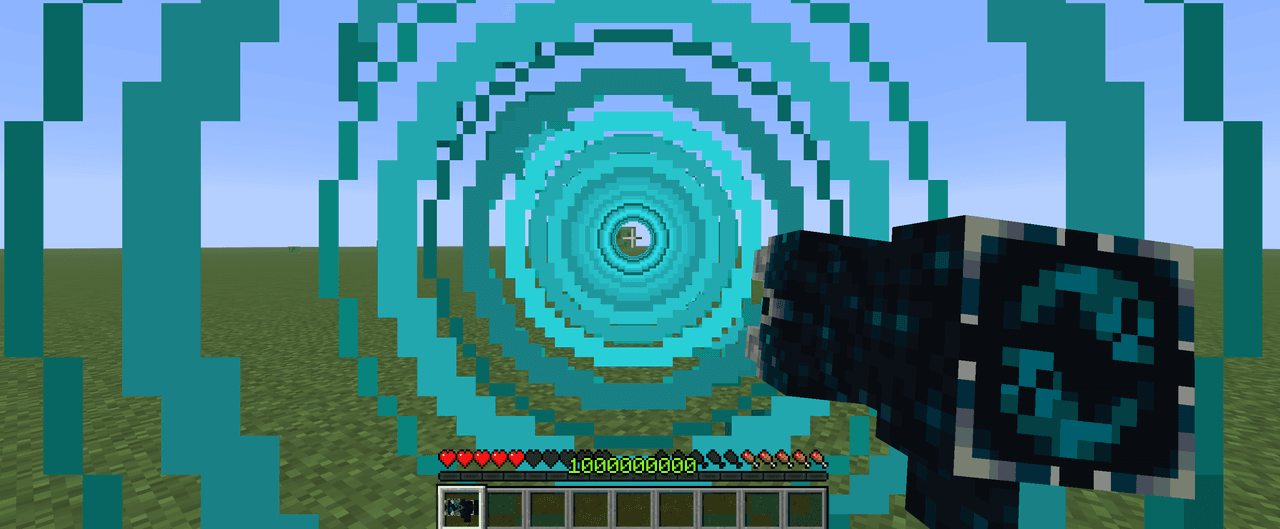
Fire a Sonic Boom Gun to blast foes and shatter fragile blocks with a 25-block beam. hi this gun was not designed by creative mod it was designed by me i really love making stuff and this is one of them i had this idea for a couple of months but i just didnt make it for some reas…
This mod is licensed under the CreativeMode Mods License.