

You finally got your mod to where people love it. Now you want to add a new mob, fix a recipe, or give it a fresh look. But what if the update goes wrong while everyone is playing?
With Drafts, it won't. When you edit a published mod, your changes now go into a draft first. Your players keep the version they already have, and nothing changes for them until you hit Release.
How it works
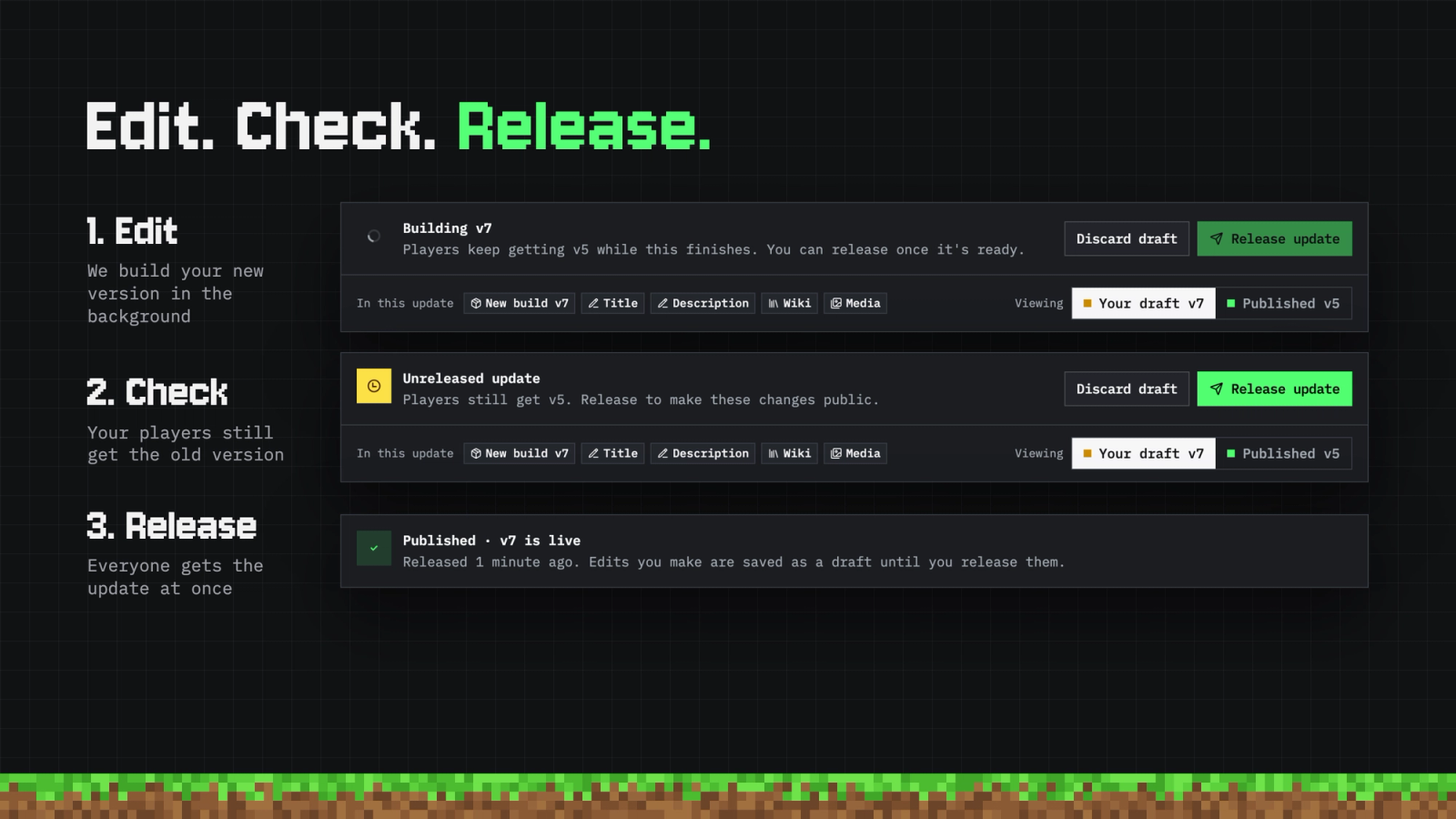
-
Edit your mod like you normally would. Change the prompt, recipes, or textures, or update the title, description, wiki, or pictures. Everything gets saved to your draft.
-
Check it out. While your new version builds, your players keep getting the old one. When it's ready, look over your draft and make sure everything is right.
-
Hit Release. Everyone gets your update at the same time, including modpacks and servers that always use your newest version.
Your update bar
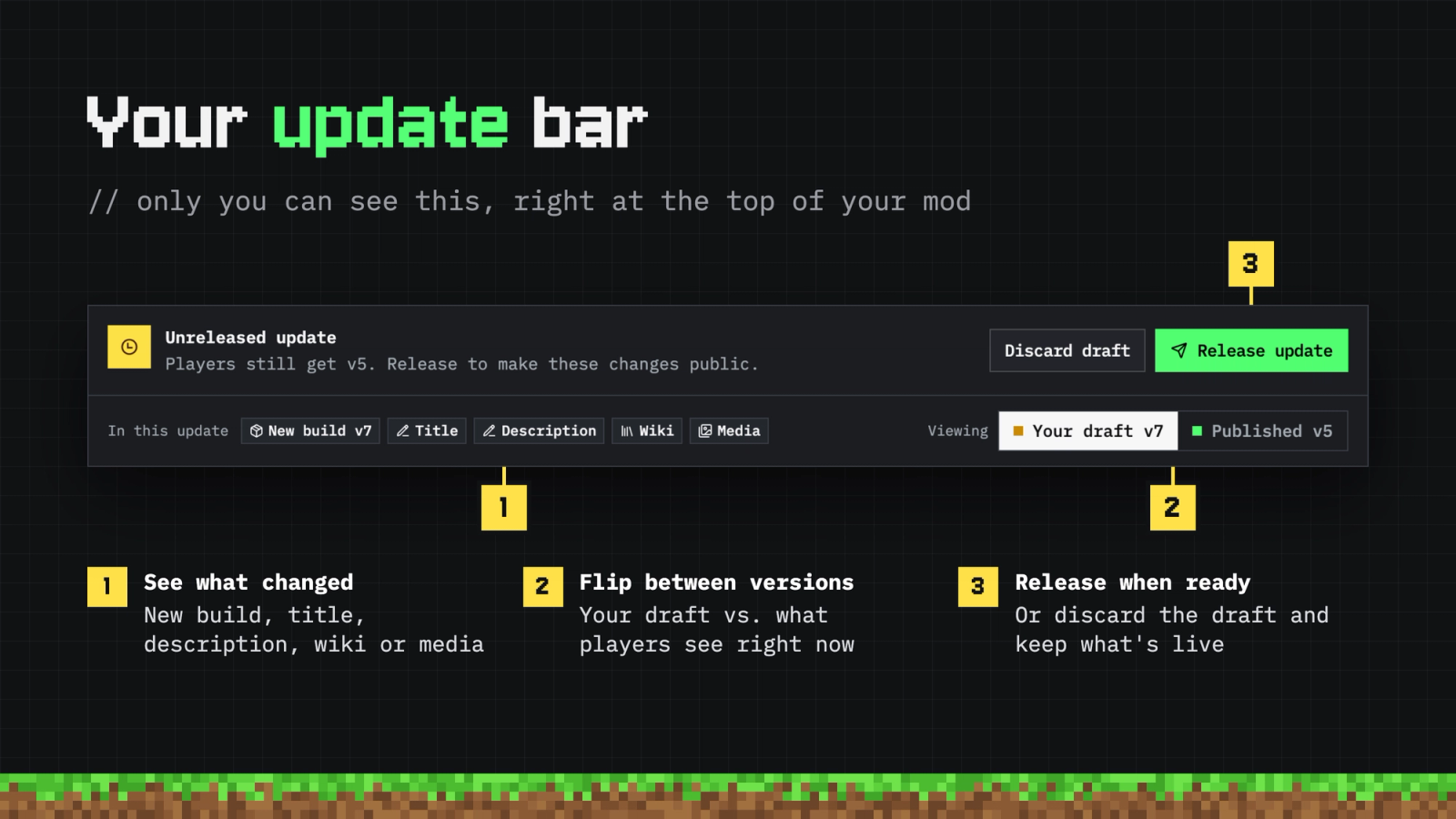
When you open one of your published mods, you'll see a new bar at the top. Only you can see it. It shows:
- What's changing. Tags like New build, Title, or Media show exactly what's in your update.
- Which version you're looking at. Use the Viewing switch to flip between Your draft and Published, which is what everyone else sees right now.
- Release or discard. Hit Release update when you're happy. Changed your mind? Discard draft throws away the changes, and your published mod stays exactly the same.
Good to know
- Drafts are only for published mods. Mods that are still unlisted or waiting for review update right away, just like before.
- A failed build can't break anything. If your new version doesn't build, your players never see it. Try another edit, or discard the draft.
- Editing from the launcher works too. Your changes still go into a draft, and you release them on the website.
- Want a second opinion? Send your draft link to a friend so they can check it out before anyone else.
Now you can try out big ideas without worrying about breaking your mod for the people who play it.
Try it out, and let us know what you think!


